Showing posts with label tips. Show all posts

Thursday, July 11, 2013

Grand Hotel, Point Clear

Mired ©Created by Jill; template by fiddle-dee-dee designs;
Grand Hotel photographers
   As a wedding present Pan's sister and brother-in-law gave us a three day stay at the Grand Hotel in Point Clear, Alabama. Elegant and decadent doesn't even begin to describe what a wonderful place it is. Something straight of the movies. And with a pool that you can canoe across it was so big.
   Again I did not have pictures so had to resort to downloading them from the hotel's website. Just a reminder of how lovely it was.
  TIP: Journaling is so important to recording what was going on in your life. Instead of downloading pictures I could have just as easily written a more comprehensive description of the hotel. And if I were a better writer that is what I would have done. Don't be afraid to do pages that have only journaling on them.
   TIP: Your scrapbooking kit doesn't have to match your pictures, but should evoke a feeling of what the pictures are conveying. In this 2-page spread there are alot of blues and golds, but I chose "Mired" by Created by Jill as the opulence of the papers and elements enhances the opulence of the pictures.

Sunday, July 7, 2013

Honeymooning in Gulf Shores

My Favorite Place ©Created by Jill, Sand Between My Toes
©Created by Jill, Template by Designs by Jen Yurko
   The Bug is scrapping her Scout pages while in the meantime I have been trying to work on a coffee table book of the trips Pan and I have taken over the years. Most of the time it will just be me as he was (is) in conferences while I am actually "vacationing".
   I will be showing the two page spreads and in a lot of them you will notice a definite line in the center. Just remember a small portion of the center will be in the gutter of the book (if you have it printed by a company such as Shutterfly or Mixbook). If you will be printing them yourself, it still own matter too much as I am sure you will be placed the pages in acid free sleeves in a clip bound book so they won't really be side by side.
  TIP: Looking back over photos, I realized that I missed pictures here and there. But that is where the Internet can be your friend. We honeymooned in Gulf Shores, Alabama, so doing a search on it I found some pictures of the town that would help us remember the special time we had. My heartfelt thanks goes out to those who placed these pictures.

Thursday, March 10, 2011

Drag it then Drop it

Just a short post today. I have been considering how to approach the subject of "drag and drop" when I came across Creation Cassel's video on it. Since I plan on using the phrase from here on out I would like you to take a moment to watch it. It doesn't last long.

Creation Cassel's drag and drop video.

If you have any further questions, just let us know.

Tuesday, March 8, 2011

Do it over in March

It's that time again. Time to pick another old layout and see what I can do to improve it. This time I chose an Easter layout I did of my nephews (Bug's boys) way back in 2007. While it has the pastel colors associated with Easter it just doesn't flow properly. The layout was about their chocolate Easter bunny and I have pictures of them searching for eggs.


The first thing I did was change the pictures of the boys. Since the layout is about the bunny I kept that picture. Next, while not pastel colors, I picked a kit that had a more masculine feel to it while still embracing the spirit of the holiday. Darker purples, sea greens, sand and just a touch of pink. A felt like title put more emphasis on what the layout is about. I also kept the original poem, spacing it out a little differently this time. All in all I think I really like the new layout better.

Template by Design by Dani; Springy Thing (c)Lindsay Jane;
Fonts: Bubbleboddy; Calibri

Friday, March 4, 2011

Printing on Cardstock

For the Bug. No, I would not recommend printing on colored cardstock. Use white. Printer ink just doesn't work well on the deeper colors of cardstock. I guess you could use light pastels, just remember that your colors are not going to look quite right. Stick to white. You listening, sis?

Aloha Dreams (c)Trixie Scraps;
Template by Isabel Mendez; Font: Pea Zingy

Tuesday, March 1, 2011

Tag Your It

We have talked about organizing our photos, but we can also tag them. And why might you want to tag a photo? So that if you are looking for a particular photo you can find it more easily.

There are several ways to accomplish this. Today we will go over how you can do it within PSP X3. The first thing you will have do is click on the organizer tab in the top right corner.


Click on "Browse More Folders" then the arrow next to "computer" to find the drive and folder where your photos are located.


Once you click on your folder, it will put a quick link on the left and show the pictures within the folder at the bottom.


Click on a picture at the bottom to open it in the workspace. On the right side choose a rating (1 star for a poor picture, 5 for an excellent picture). Type in a one or two word tag (i.e. Pan, etc) and enter. Once you have finished entering the tags, you can put in a caption then click the green apply button at the bottom.


Suggested tags: the name of the persons in the photo, special occasions (i.e. Christmas, Spring Break, etc.). You will surely come up with more that fit your needs.

Now when I go to the organizer and am looking for a picture of Pan, I can click on the "Pan" tag and all the pictures of him in the folders where I have used tags will show up at the bottom.


If you have several pictures that would have the same tag, just click on the first one, then hold down the control key and chose the rest. I would wait to add the rating and the caption though unless each is exactly the same. And sometimes a caption isn't even needed.


Pretty cool huh? If you are like me and have thousands of pictures to tag, this may take some time. I suggest whenever you have a free moment that you take a moment to tag a folder or two.

For those who use Photoshop or Elements, I suggest you sign up for the Scrapgirls newsletters and check out their past newsletters.

Beaches N Cream ©Kristmess; Sea Spray ©Spinkydink Designs; A New Day Ahead alpha ©Victoria Feemster;
Scraplift of “Buenos Aires to Trancoso” by Mrs. Peel; Fonts: Century Gothic; DJ Fancy

Saturday, February 26, 2011

I need a storage unit

I know we have talked about photo organization, at least I thought we had, but I can't seem to find it anywhere.

So this is going to be a quick "how I do it".

And just remember you may have a better way, you may prefer to use the software that comes with your camera (my & the Bug's other sister uses this way), etc. Maybe Bug can post in the comments how she goes about saving her pictures (or another post.)

I have a folder on one of my drives called "PHOTOGRAPHS". Real unique huh?


Within that folder I have more folders with years on them. (I know, I know, I have other folders, but they are like holding folders until I get them placed)


Within the year folders I have the date folders. I always date the folder according to the date of the picture and with a brief description (we'll be going into tagging next time). You may notice that some days have #1, #2, etc. I will do this if there are different things going on within the same day, a different camera was used, if they are scans or if someone else gave me photos. If someone else gives me the photos I will usually name the folder like this "2010-04-24 XXX pool". There are some copyright rules about using someone else's photos, including if it is a child who took the picture or someone else who took it with your camera. Best to keep track of it all.


You can also select the photos then right click and bring up the properties dialog box. Click on details tab and in the copyright field put in the name of the photographer. Downside is that you would have to check the properties of each picture if you wanted to see if someone else took it. Just easier to give them their own folder.


When plugging my camera into the computer I comes up with the following dialog box. My choice will be Open device to view files.


Having made a new folder and opening the device I will select the photo(s) and right click, choosing Cut.


Clicking in my new dated folder, I right click and choose paste. This will delete it from my camera and place it in my new folder.


As I said before there are numerous ways that you can use to download and store your photos. But whatever way you opt to use, make sure you back them up to an external hard drive and make cd copies. Don't depend on just cds for your storage media. I don't know if you can tell or not but on the second image above is a folder called Recovered. I had a cd go bad and had to purchase special software to try and retrieve it. While I saved some, I still lost quite a bit. Remember: BACK UP, BACK UP, BACK UP.

Sweetheart daily download (c)A+ Designs, Isabel Mendez,
Mye De Leon, Silvia Romeo; Font: sf Sue M

Wednesday, February 23, 2011

Go with the Theme Part 2

When first posed with the question from Bug about using a theme, I had written the post Go with the Theme, then recently realized that I totally digressed from my suggestions in said post.

So you see it isn't absolutely necessary to follow a theme. Okay, there is a theme going on here, the flowers; but the colors are so very different. I would probably use the "flowers" page as a opening page for any book I may make then follow through with the same colors used in the "wedding" pages for the rest. Possibly using the same colors and flowers in the "flowers" page to conclude the book with a signature page.

When it comes to using colors and themes, it really is up to you.

Spring Spray (c)A+ Designs;


Priceless Moments (c)Armina Designs & She's Full of Scrap;
Template Designs by Dani; Fonts: Bleeding Cowboys, Pea Ashley

Monday, February 14, 2011

It's all in the background work

Sometimes you just want something a little different. In Mode of Operation we used the blending modes on text; in Show me the way, on maps to be used in the background. You can also use it with photos, as seen below.

This works especially well with photos that didn't turn out just as you wanted them too. Those that are a little blurry. Wasn't the case here, but it worked for the challenge was I was doing that required using one photo, two times.

Now is your chance to try something a little different. Give it a go and then let me know how it turned out.

Template-Chris Greiser; Lovely ©A+Designs; Word art ©LorieM Designs

Friday, February 11, 2011

Go with the Theme

Bug's Question: Putting pages together... use the same 'theme' / kit of papers and elements or do something different for each one. Why or why not?

Again this is a matter of choice. I may not use the same kit for each page; but I do try to use complimentary kits. Let's take my Atlanta aquarium layouts. I have used "A Fish Named Ernie" by Spinkydink Designs, "Fishy Fishy" by Connie Prince, as well as "Squid Ink" by Creations by Rachel & Late Night Scraps. All of them have similar colors and theme going on.

On the same day, I have also scrapped packing up and leaving. For those layouts, I have used different kits than from the aquarium. Each of these have similar colors and styles.

Personally, I feel if you are making a series of layouts for a trip, birthday, special event, that just one kit will severely limit your choices. If you find several kits with complimentary colors and theme, then you can mix and match elements and papers.

I would be interested in hearing what you think.

Template by Designs by Jen Yurko;
Fishy Fishy (c)Connie Prince; Sealife (c)FabaScrapDesigns


A Fish Named Ernie (c)Spinkydink Designs;
Template by Amy Stoffel; Kraft Again alpha (c)Etc. by Danyale


Puppy Dog Tails (c)A+ Designs; Font: Century Gothic


Template by Scrappin' Memories by Amy; Orange Crush (c)Armina Designs;
Word art (c)Word Art World by Jennifer


Template by Cara Olson; Perseverance (c)Connie Prince;
Font: Century Gothic

Wednesday, February 9, 2011

Do it over in February

Gotta Pixel has a Do Over challenge every month. I think I will start posting my before and after here after each make over so you can see how your styles will change over the course of the years.

My original is okay. Not outstanding. I managed to put in some journaling which is a good thing but there is nothing that really draws your eyes to the pictures and the journaling.

In the make-over adding a title gave some indication of what the journaling may be about, adding needed interest. By making the smaller photo a little larger and the larger photo a little smaller then grouping the photos together with a cluster of elements draw your eyes right to them. Using a background that echoes the color of the trike, round green mattes mirror the colors in the grass and paper strips which match my nephew's t-shirt add continuity to the layout. The whole layout is brighter and more visually appealing.

2006
Gotta Be Quick (c)Christine Wall; Font: Elegance

2011
Dirt Don't Hurt (c)A+ Designs & LauraMarie Scraps;
Template by Lyndsay Riches; Fonts: Bleeding Cowboys; Century Gothic

Wednesday, January 26, 2011

What is that color?

You're going through your kits and find several which just might fit the bill. Thing is you like the elements from kit 1 and you know the papers just aren't. But the papers from kit 2 are exactly what you are looking for. This is where the colorize and H/S/L come in.


Throughout this demonstration I will be using "Sealife" (c)FabaScrapDesigns and "Fishy Fishy" (c)Connie Prince. I really like the elements and alpha in Sealife and see that I am not going to have to alter much, if anything, in the kit. The papers leave something to be desired for the layout I plan on doing. While Connie's papers in Fishy Fishy are what I was looking for in terms of texture and pattern.

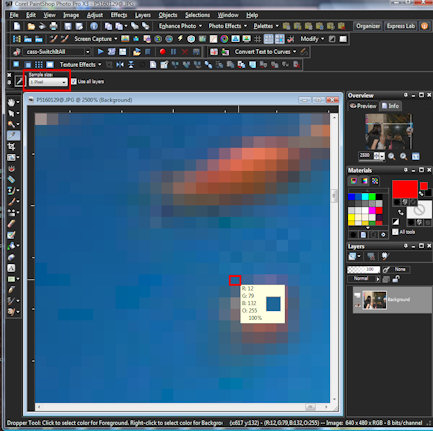
Using the color picker and my photo (enlarged so that I can see individual pixels) I will be picking a color from it. On the palette toolbar to select the sample size. Choosing 1x1 will pick up the color of the pixel you have chosen.


By choosing one of the other selections; i.e. 3x3, 6x6, 9x9 or 11x11, the picker will average the colors of the surrounding pixels for the color.


1. Click on the color in the material palette to bring up the
2. Materials Property box.
3. Click on add to swatch and
4. Name it. Since I will be deleting the swatch after using I just give it a name of 0000 so that it is the first swatch on the swatches palette.


With the materials property box still open write down the H and S numbers (Hue and Saturation).


After chosing the paper (element), go to Adjust>Hue and Saturation>Colorize (shift+l). Put in the numbers of the Hue and Saturation that you wrote down in the corresponding boxes. (I just colored one-half for demonstration purposes only).


If you want to lighten or darken the color go to Adjust>Hue and Saturation>Hue/Saturation/Lightness (shift+h). Make sure the hue and saturation are set to zero (0) then move the Lightness slider up to make the color lighter or down to make it darker.


Do the same for any other papers or elements you want to alter. To change just a specific area or color on the paper or element, use the magic wand with the tolerance set to about 30 (depending on the contrast of the edges. Not much, lower the number, if a lot you can probably set it higher) and make sure contiguous is unchecked. Then follow colorize and lightness directions above.


I have recolored the blue background paper, blue circle (readjusting the lightness), dots on polka dot circle, bubbles and the alpha.

Sealife (c)FabaScrapDesigns; Fishy Fishy (c)Connie Prince
Template by Jen Yurko

Monday, January 17, 2011

Express Lab - Color Balance

This time open you photo in PSP. Then View>Express Lab. Click on the Color Balance icon.


Moving the slider to the left (increasing the value) adds blue to the overall color of the photo making it cooler, toning down the reds, oranges and yellows.


Moving it to the right (decreasing the values) adds red to the overall color making for a warmer photo.


Using the color balance in the Express Lab will be very useful for those pictures in which there is a blue or red color cast that you want subdue.

Template by Isabel Mendez; Until the End (c)A+ Designs;
Font(s): Brush Script; Century Gothic

Saturday, January 15, 2011

Express Lab - Smart Photo Fix

Today we will be working with the Express Lab that comes with PSP X2 and X3 (it may come with other versions as well, I just don't have them installed any longer).

Open the Express Lab (View>Express Lab). Click on Get Photos button on bottom right corner and open photo that you would like to improve. Click on the Smart Photo Fix icon. The white box with the grey "mountain" to the right is a histogram. For a more detailed explanation, please check out The Luminous Landscape's article "Understanding Histograms".


You can use the "Suggest Settings", which will automatically chose what the program thinks are the best settings for your photo. (NOTE: The red "mountain" shows the new setting, leaving the grey to show the original, so you can see how it has been changed.)


If you don't like these settings hit the reset and then you can manually adjust the brightness, shadows, highlights and saturation.

Brightness: Move slider to the left dulls the photo; to the right brightens the photo.
Shadows: Moving slider to the left will make the shadows darker; to the right makes them lighter (you may want to move to the right if there is detail in the shadow that you want to bring out.)
Highlights: Moving slider to the left will make the highlights duller; to the right will brighten them.
Saturation: Moving slider to the left will desaturate (take the color out) of the photo; to the right will increase the color saturation.


In the original the colors were just a tad dull. Using the suggested I felt the highlights were blown out. But a little manual tweaking made the colors pop and the photo crisp and clean.


One of the challenges this month at Gotta Pixel was the lyric challenge, but instead of them providing the lyric, you were to chose a song from 2010 that touched you. I chose "In Darkness and In Light" by The Maine.

Template by A+ Designs; Stars & Stripes Forever (c)Sherry Ferguson;
In Darkness & In Light by The Maine; Font: Century Gothic; Cooper Black

Thursday, January 13, 2011

With a Script here and a Script there

Scripts are still somewhat foreign to me.  Odd because I was a computer programmer in 7 computer languages in my 'previous' life (before children and becoming a housewife).  Yet, I haven't had time to sit and really work with them except once.  I need to do it a couple of more times to make it sink into this brain.  Until then, I keep reading and looking at sites with scripts wondering if they would work for me.  One site I really enjoy is


Yesterday she continued her posts on scripts.  If you want to delve into something more with scrapbooking... check out Creation Cassel.  She writes well for my kind of reading.  May or may not work for you.  Still... it is an option if you are ready to expand your knowledge.

Wednesday, January 12, 2011

Rule of Thirds

Most of you that use a camera know all about the rule of thirds. For those who don't take a read at Digital Photography School's article.

But let's say you have a picture you want to use that is somewhat bland and doesn't fall into the rule of thirds.


What can you do? Crop it, of course. But here's where PSP makes it interesting. First select your crop tool. Now click on the tiled display grid button on the left.


Now you have a display grid to use when making your photo fit the thirds rule.


In my illustration, I have placed the top grid along her eyes and the left grid along the center of her body.


Now I have a visually appealing picture to use in a layout.


And the finished layout:

Template by VickyD; Celebrate the Season (c)Lindsay Jane;
Font: Century Gothic
Related Posts Plugin for WordPress, Blogger...