Showing posts with label templates. Show all posts

Tuesday, January 25, 2011

Terrific Tuesday

What a day... I am on the second day of my new job.  Love it but noticed it has cut into my scrapbooking!  Egads!  I'm trying to get some pictures thrown into layouts so when I get a moment I can find the right paper and elements.  Like this one I did today for my son's "Fun Run" Boosterthon Fund raiser for his school:

Template: Yin Templates225

What amazed me was I didn't find any good 'racing' or 'running' papers and elements in my huge list of stuff.   Between the free stuff and the bought stuff, you would think I would have a good racing set.  If I do, it is buried deep and I don't have it documented.  Any suggestions?

Friday, January 21, 2011

Bug's Week 3 of January - 365 project

Baw hahahaha.  I am finally up to speed on my 365 project. Today is the end of week 3 and I have week 3 in a template AND with journalling. Life is good!

template: cbj_365_temp_week47
font: segoe print


How is your 365 project coming along?

Wednesday, January 19, 2011

Bug's Week 2 of January - 365 project

Ok, I'm at it again.  Finally got week two into a layout.  No words, no papers or elements... but here is week 2!


template: awp - 365 template 2


Found that template layout at Vicki's Blog for free.  I think it is going to work great with my January theme.  Now if I could just decided on which papers I like best!

Friday, January 14, 2011

Bug's Week 1 of January

Getting a template from "In the Making Design", I did not add any papers or embellishments... yet... Will do it after I finish the month of January.  Here is Week 1 of my household:


template: Inthemaking_P365templateI

Text still needs to be added besides just the dates. It also needs to be lined up.  But it is a start.  Finally... a week late.  I have some work to do on a program brochure but hopefully I can finish week 2 this weekend!  How are you doing on your 365 project?

Wednesday, December 22, 2010

Gift Box Galore

There are so many places you can get patterns for gift boxes.  I was looking for something specific and I found it... In fact, it has 36 different patterns from book boxes to bon bon to cake slices.  Wow.  If you need something quick and are fairly good at figuring stuff out yourself, here is the link for you:


Hope it helps you get those last minute gifts wrapped!


Monday, November 22, 2010

Year Round

As you begin your foray into the digital scrapbook world one of the terms that will come up quite often is "365 Project" or "Project 365".

I believe it originated within the photography community then migrated into the scrapbooking community. But I could be wrong.

It is a challenge. One that requires (or at least highly suggests) that you take one photo a day. It is a worthwhile endeavor especially for those with children at home.

On the scrapbooking side of it, you would then take the 7 photos and do a page with them, either making up your own layout or using one of the multitude of "365" templates available (for free or for sale). You will also find weekly all the way to yearly templates.

Whichever way you go, make sure that you have room for journaling. Part of the reason for the 365 project is to create a visual diary of sorts so that future generations have an idea of how you lived. And it will just be fun to see over the years how you have changed. Oh, also make sure you date the page either by putting a date on each picture or a separate layer with the date range, i.e.: Nov. 7-13, 2010.

Now is the time to take the plunge and start your own 365 project.
On my template below, I didn't have pictures for each day of the week. Instead I chose to pick out pictures that represented something special throughout the month: The renaissance fair, a new shopping center, a new computer room, playtime, a birthday and lunch with a friend. I put the day on each of the pictures then in my journaling boxes started each paragraph with the day and a description. If you find that you have missed a day or two in your 365 project, this is one way to keep it going.

Template by Moodyjudy; The Story of Us (c)Trixie Scraps, Sweet Digi
Scraps, Mye De Leon & Designs by Helly; Font: Pea Pumpkin Peter

Monday, November 1, 2010

Need A Different Calendar Template?

I couldn't believe my eyes... Simply Sarah put out a calendar template for 2011.  Very easy to use, basically done for you... Just add some pictures.  It is different than the one I worked on and can be easily changed to your taste... but I thought it would be nice if I linked to her and showed you another option in a quick way to make a Christmas gift that people love!

Go HERE to see the 2011 Calendar from Simply Sarah.

The one you download does NOT have the kids pictures in it.  Just a nice plain background with the ability to put in pictures of your choice.  Well worth it if you need something quick and easy.  Besides, I just love her stuff and am so excited that she is posting again.  Life is good!

Friday, October 29, 2010

Not so sweet treats

With Halloween just around the corner and trick or treaters heading for your door, you have the option of sticking with traditional candy OR you can try out some of your scrapbook techniques to give out something just a little different or to use as party favors. Today we will go over crayon boxes.

Stacy Carlson has written a wonderful tutorial on how to put together crayon boxes. If you have joined Gotta Pixel you will be able to download Sweet Digi Scraps pre-decorated boxes for free. But if you want to decorate it yourself you can do a search on crayon box template to find one. I chose to use one from Stampington & Company.

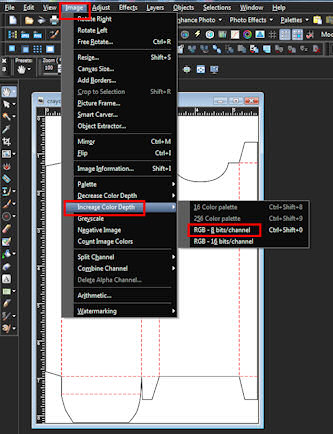
If your template is a gif (Stampington's is), the first thing you will want to do is increase the color depth: Image>Increase Color Depth>RGB - 8 bit/channel and save as a jpg.


Next on the order is resizing the template. For the Stampington template I had to resize it to a height of 5.31" or 1594 pixels at 300 dpi.


Promote background to layer.


Increase canvas size to height of 6.31", making sure ration aspect is locked and placement is center.


Select magic wand.


Set mode to add; match mode: RGB value; tolerance: 10; check contiguous; feather: 0; check anti-alias; outside.


Now select the white areas on the outside of the box and delete.


Using "Save as" save your template in the psd or pspimage format.


Now we can get started on decorating our box(es).

I'm using the "Spell on You" kit by Designs by Helly which I purchased at Gotta Pixel. Picking out a background, I've resized it just a tad larger than the height of my box.


Now I will copy (control+c) the background and clicking on the template to make it active, paste as a new layer (control+v). Hide the background layer and make the template layer active.


Control+a; control+f; control+shift+f while on the template layer. Make background layer active and unhide.

Got to Selections>Invert.


Hit delete on keyboard.


On your template layer, right click>Arrange>Move up.


Lower opacity so you can see background but still see the scoring folds.


Making the background active again, start adding the elements to round out the box. Use the scoring folds to determine size and placement. You can you use pick tool to resize; set mode to scale.


After your elements are placed and sized, hide the template layer. Make sure one of your element layers or background layer is selected. Right click on that layer>Merge>Merge Visible.


Unhide and activate your template layer. Chose your pen tool and set up: draw lines; uncheck connect segments; check create on vector; Line Style: solid or dashed; Width: 5; check anti-alias.


Set foreground color to a slightly darker color than your background if it is light or slightly lighter color if it is dark (I've used a grey to make it easier to see here). What we are going to be doing is making scoring folds for our boxes to facilitate Stacy's instuctions. You can use a guideline to make your lines straight or you can click on the beginning of the line, hold down the shift key and drag to the end.


After you have made your scoring fold lines, delete the template layer.


Lower the opacity of the scoring lines until they are barely visible.


Right click on one of the layers>Merge>Merge all.


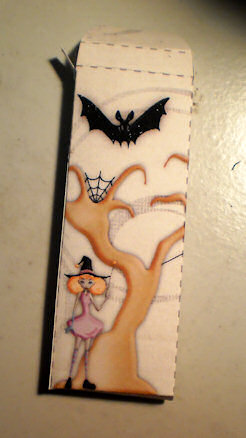
Save as jpg or tiff. Print, cut out and follow Stacy's instructions (link at top). Below are pictures of how my box turned out.


You might think it is a little late to get started on this and you are probably right unless you have just a few treaters. But keep it in mind just before school starts next year and crayons go on sell at the office supply stores. And, of course, using different kits you can make some nice favors to keep around at Thanksgiving and Christmas to keep the little ones entertained.

NOTE: for another cute and crafty idea using a different crayon box, check out "A Colorful Treat" by Jenn.

Template by Mandagirl; Bewitched (c)Candy Treats, Crystals Creations,
Brenda Mascari. Tooty Pup Scraps & Designed by Stina; Font: Arial

Wednesday, September 22, 2010

A different point of view

Sometimes I wonder what goes through my brain to engage my mouth. I asked my sister to find us a template. Why? So we could both use the same template and show how different it looks depending on who is using it. Forgetting how well my sister scraps compared to me. Sigh. She sent me a template from PencilLines and I gave it a shot. When I first saw it, I thought of a chalkboard. From there, I found a picture that I thought would fit it. Here is the template:


I went hunting for the boys first day of school picture for this year. I had not done anything with it and here was my chance. I then went to find papers and elements I liked. I put it together to get this:

papers, elements: Raspberry roads
template: PencilLines


While certain pieces are missing and some replaced with my own pieces of what I thought should be there. Notice, the positioning is about the same if you look at the original template. The idea of this post was to show you how two people view the same template differently... so Tink is going to put her's here as well with her thoughts. Trust me, we do not think alike in scrapping so you will be in for a treat. You'll also see why I ask her for advice. Don't get me wrong, I like my page... it's 'fun'. I am still hoping with all the work we are doing on this blog that I will one day be as good and as quick as Tink.

All yours now sis!

Thanks sis. But yours is adorable. We just have different thought process. Like you I made some changes. Appears both of us got rid of the scalloped edge. Though I kept the matte behind the picture and you used a frame. You used the smudge behind the picture and made it look like someone was wiping down a chalkboard (darling idea), I opted to get rid of it completely and use a swirl "rub-on" and larger swirls around. It is always going to be a matter of what you are scrapping. And there are people out there who can run circles around what I did. Like Bug said we got the template from Pencil Lines and can be found here. Get it and then show us what you come up with. And while there take a look at the ways others saw the template (and moosy around to see what other goodies they have). Leave us a link to your page so we can come by and take a look.

Template by Pencil Lines; "Sundance" bundle (c)Laitha & Valentina's Creations;
"Forever Young" by Bob Dylan; Fonts: Bleeding Cowboys, Pea Roni Script

Saturday, September 11, 2010

What's Your Angle?

You've seen how to straighten your photos using the straighten tool, but did you know the same tool is quite handy to determine angles? This is especially important when working with templates you have downloaded.

Use the straighten tool along top or bottom edge of photo template.


Check the angle in the angle box on presets bar and WRITE that number down.


Choose the hand or move tool; then make sure your photo layer is selected.


Select your rotate tool (image>free rotate or control r on the keyboard). Direction: right; All Layers: unchecked; Degrees: Free and enter the number you wrote down in the box. Click okay


Lower the opacity on the photo layer and move the picture over the photo template. If you need to resize (and please only resize down, not up. In other words, don't ever make the photo larger than it was.) choose the pick tool and set mode on preset bar to scale. Left click and hold on of the corner nodes. Pull to adjust size but so picture is still outside the photo template.


Select the magic wand and photo template layer. Click on the photo template.


Click on the photo layer and raise the opacity to 100. Then Selections>Invert or control shift i on keyboard. Press the delete key on keyboard.


A photo at the correct angle.

Template used is by Manda Girl.

Template by Manda Girl; "Spring Breeze" (c)Gotta Pixel Designers; Fonts:Yukon Gold; Century Gothic

Thursday, September 2, 2010

Templates - the start of the journey

Ready to get started?  If you are like me and not necessarily the most creative... you too will want to go find some templates.  Free ones preferred.  Why?  Because so many are very much alike.  With so many people making so many templates, they are bound to be similar... you can only fit so many pictures in a page.  There are only so many places to put journaling.  Sometimes, I will buy the huge kits that are on sale just because it is easier than hunting stuff down.  Free stuff is free but not necessarily easy to find.  There are some sites I have a tendency to go to over and over to get stuff. 

I joined some scrapbooking forums to get them... like:

Go Digital Scrapbooking

or one that just has a list of freebies to check out is

Hand Picked Freebies

From there you can grow...  or you can search.  I like Andrea Gold's templates, digitreats, hummie's, j2mt, racketty scrappety, and lisaminor.  Something to keep in mind is that they only have them free for limited time and then you must buy it after that.  Not a problem for me... if I really want it, I'll buy it... particularly when I haven't looked at the site in 6 or 7 months.  Right now, I'm on top of it and grabbing anything I can.  Got to fill up my harddrive!

Hope this helps you get started and ask questions if you have any!  Post a favorite template website if you have one.
Related Posts Plugin for WordPress, Blogger...